kping is a tool to test connectivity and measure delays between two end points. It can use connections with TCP, UDP or UDP/QUIC.
kping has been programmed using different languages to check interoperatibility between different libraries and platforms.
kping has been tested on different platforms:
| Swift | go | |
| Linux arm64 | * | ✅ + |
| Linux amd64 | * | ✅ + |
| macOS | ✅ | ✅ |
| iOS | ✅ | – |
| container image | ✅ arm64 / amd64 | |
| helm chart | ✅ |
+ compile on other unix variants has not been tested.
Source code
The source code is available in github: https://github.com/kayrosuno/kping
Download
Binaries: https://github.com/kayrosuno/kping/releases
Containers images: https://hub.docker.com/repository/docker/kayrosuno/kping/general
Helm chart: https://artifacthub.io/packages/helm/kping/kping
Run kping
kping go version on linux, macOS
The go version of kping run over unix and macOS, it use quic-go library for the QUIC protocol, and can connect using only UDP, or TCP
The go version has only a command line application, suitable for use in unix systems or to use in containers or Kubernetes
In «server» mode kping act as a server listening for QUIC, UDP or TCP connection. Open a new connection for each client and listen for the request, the server reply to each client request
Use: kping server <port>
Example: ./kping server 25450
Start a quic server to listen into the specified port, default port is 25450

kping client mode
qping is a client written in go and swift to connect to a server using QUIC. The client send requests to the server and receive from the server answers to measure rtt. You need a qping acting as server to reply to client requests.
Use: kping <protocol> <ip_server:port>
Example: ./kping quic 192.168.2.70:25450
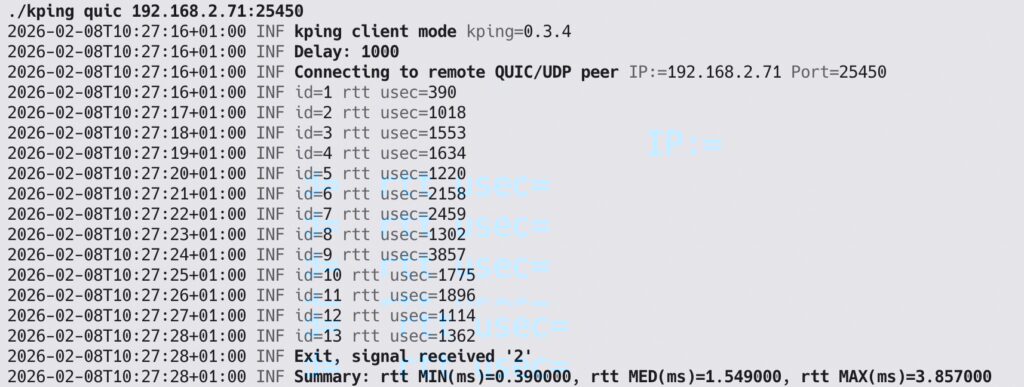
kping go version on containers:
To run kping as server using a container image with docker:
docker run kayrosuno/kping:latest

kping go version on Kubernetes:
To deploy a pod with kping as server and a node port service to access to it
kubectl apply -f <***.yml>
kping go version on kubernetes using helm chart:
To deploy a pod with kping as server and a node port service to access to it, using helm chart
helm install kayrosuno/kping
kping swift version on macOS:
kping developed with swift language use apple foundation and network framework to work with the QUIC protocol. This feature is not yet available outside apple devices, this means swift version can’t be execute on linux devices.
There are available an cli and gui application versions.
The swift version run at this moment (feb’26) only over macOS / iOS devices
*Swift cli macOS*
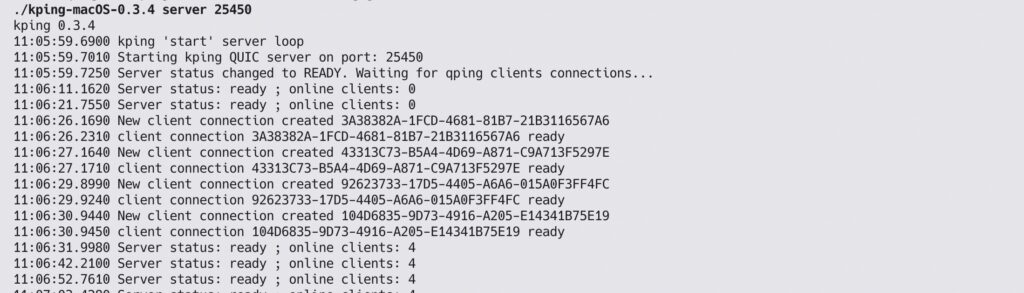
Launch kping in server mode:
./kping server 25450
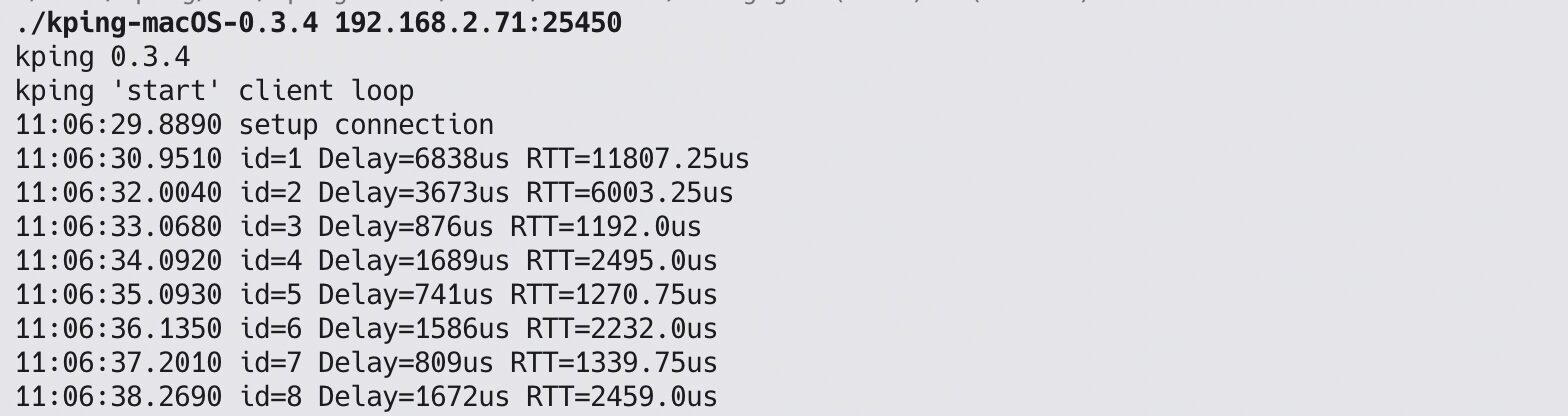
Launch kping in client mode:
./kping 192.168.2.71:25450
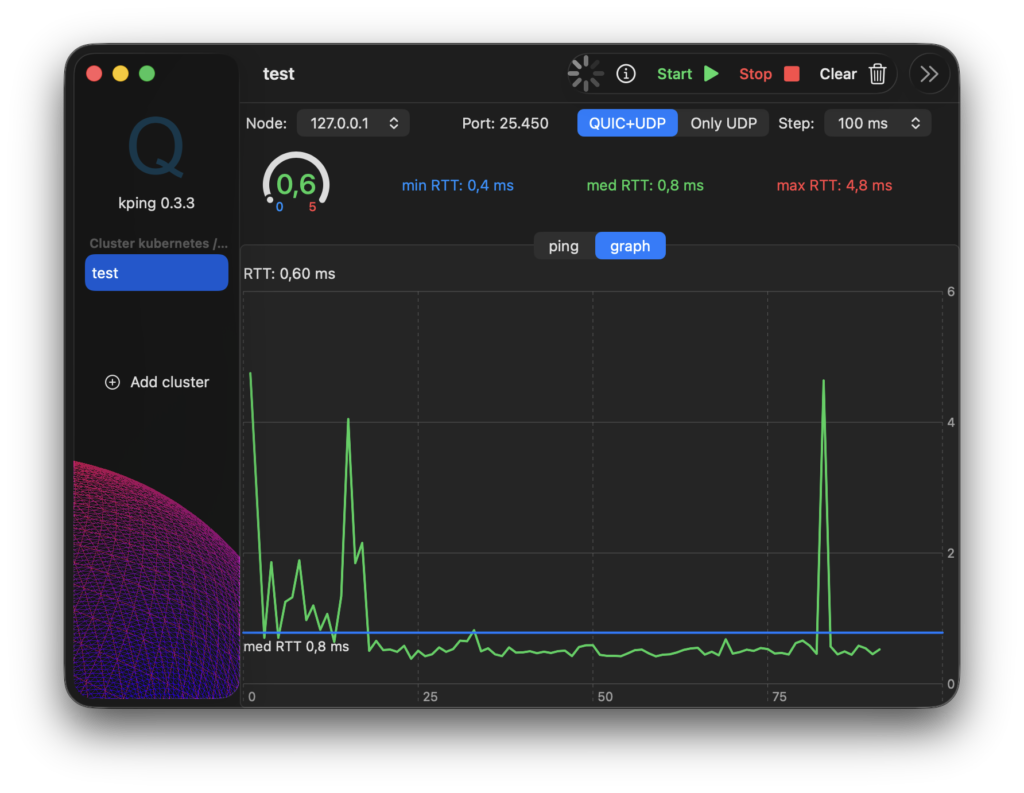
* Swift gui macOS*
Download binary for macOS and launch it, alternative you can compile source code using Xcode
kping swift version gui iOS
Compile source code using Xcode and launch on iPhone. No version available yet in AppStore.
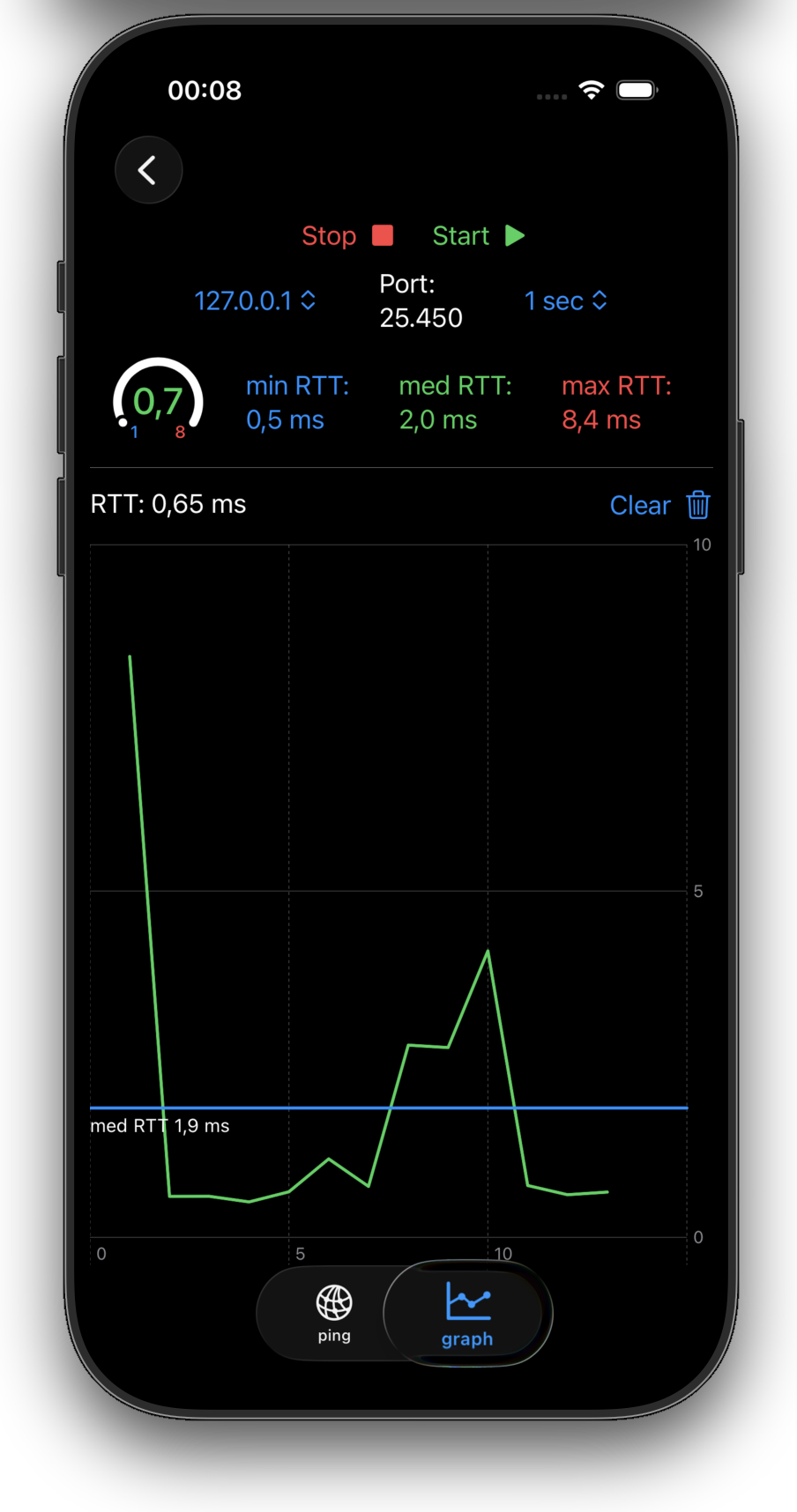
5G testing:
kping support RFC 9000 QUIC: A UDP-Based Multiplexed and Secure Transport
Available implementation in go and swift help to test 5G networks low latency using QUIC protocols, measure RTT. go implementations are suitable for use in machines running Linux or macOS while swift implementation is helpfull to do the test over iOS devices with 5G connectivity as well as macOS
Kping is used to verify connectivity in kubernetes clusters, it permit to test in an easy way different types of protocols, port opened, services, etc.
Notes for macOS/iOS
CA Certificate for macOS/iOS
You must change the CA certificate and use your own. You can follow this link to read how to do it: https://developer.apple.com/documentation/network/creating_an_identity_for_local_network_tls
#L4S for macOS/iOS
L4S to decrease latency time, activate L4S in macOS or iOS
macos: % sudo defaults write -g network_enable_l4s -bool true % sudo defaults read network_enable_l4s
iOS iphone: Activade in settings –> Development –> L4S
Here you can find how to test L4S with apple deviceshttps://developer.apple.com/documentation/network/testing_and_debugging_l4s_in_your_app